How to Remove Metadata From a PDF Before Sharing
Learn how to remove hidden metadata from a PDF before sharing. Check author names, comments and editing history, then clean the file for free.
How to Remove Hidden Metadata From a PDF Before Sharing
To remove hidden metadata from a PDF, use a tool that rewrites the file without it. In Adobe Acrobat Pro, that’s Remove Hidden Information or Sanitize Document. For a free option, clean the original in Word before saving as PDF, or flatten the PDF into images.
Most people never look past the visible page. But a PDF can carry your name, your company, the software you used, the dates you edited it, and even old comments. Send it to a client, a court or a hiring manager, and all of that goes with it.
This guide shows you what hidden data a PDF holds, how to check it, and how to remove it. FlarePDF tools are free, with no sign-up.
What is PDF metadata?
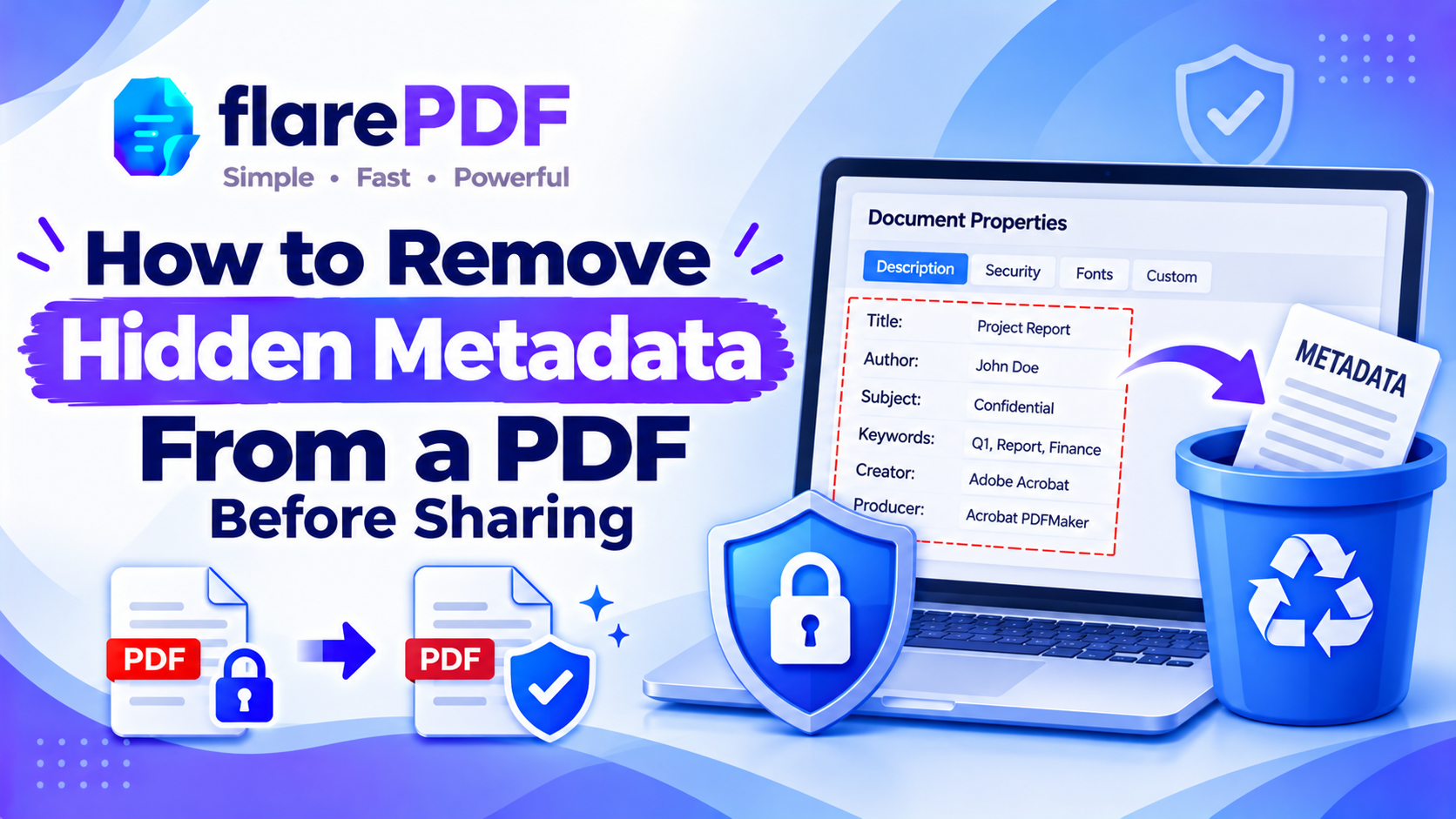
PDF metadata is information about a file that’s stored inside it but doesn’t appear on the page. It usually includes the title, author, subject, keywords, the app that created it, and the creation and modification dates. Some PDFs also hold extra data, such as comments, attachments and editing history.
Metadata is useful. It helps search tools and document systems organise files. But it can also reveal things you didn’t mean to share, like your full name, your employer or the original file name.
PDFs store this information in two main places, both defined in the PDF standard, ISO 32000:
- The document information fields: title, author, subject, keywords, creator, producer and dates
- XMP metadata: a more detailed block of data that many apps add automatically
For a plain-English introduction to the format, read what a PDF is.
What hidden information can a PDF contain?
Metadata is only part of the story. A PDF can hold several kinds of hidden content, and each one can leak information.
Document properties: author, company, title, subject, keywords, and the software used.
Dates: when the file was created and last changed.
Comments and markups: sticky notes, highlights and replies, including the reviewers’ names.
Attachments: spreadsheets, images or other files embedded inside the PDF.
Form data: answers typed into fillable fields.
Hidden text: white text, text behind images, or text under black boxes.
Cropped content: areas trimmed from view but still stored in the file.
Editing history: older content kept inside the file after changes.
Layers: hidden layers from design or engineering software.
Quick note: Cropping a page only hides the edges from view. The trimmed content usually stays inside the file. Never crop to remove sensitive information.
Why removing metadata matters
Hidden data can undo careful work. You might redact every name on the page, then leave the author field showing exactly who wrote the document.
People remove metadata before sharing files for:
- Job applications: an old CV may show a former employer’s company name in its properties.
- Client work: a proposal reused from another client may still carry that client’s name in its title.
- Anonymous review: academic papers sent for blind review must not show author names.
- Tenders and bids: procurement documents should not reveal internal file names or staff.
- Legal and HR files: comments and edit history can expose private discussion.
- Privacy requests: GDPR and FOIA releases must not leak personal data in hidden fields.
- Public posting: files on websites can be downloaded and inspected by anyone.
If you’re also removing visible text, read our complete guide to permanently redacting a PDF. Redaction removes visible text. Removing metadata cleans up the hidden data. You need both before sharing a sensitive file.
How to check what metadata is in your PDF
To check a PDF’s metadata, open its document properties in any PDF reader. It takes a few seconds and shows the main hidden fields.
In Adobe Acrobat or Acrobat Reader
- Open the PDF.
- Choose File > Properties (or press Ctrl + D on Windows, Command + D on Mac).
- Open the Description tab.
- Check the Title, Author, Subject, Keywords, Created, Modified, Application and PDF Producer fields.
In Google Chrome or Microsoft Edge
- Open the PDF in the browser.
- Click the three-dot menu in the PDF toolbar.
- Choose Document properties.
On a Mac with Preview
- Open the PDF in Preview.
- Choose Tools > Show Inspector (or press Command + I).
- Look at the General Info tab.
Also check the comments panel, the attachments panel (a paperclip icon) and the bookmarks.
Pro tip: Check your file name too. “Final-Offer-for-Competitor-X.pdf” says more than any metadata field.
How to remove metadata from a PDF in Adobe Acrobat Pro
Adobe Acrobat Pro has the most complete tools for removing hidden data. You can clear everything in one step, or choose exactly what to remove.
Option 1: Sanitize the whole document
- Open the PDF in Acrobat Pro.
- Open the Redact tool.
- Choose Sanitize document (it may sit under a “Sanitize and remove hidden info” option).
- Click OK and save the file with a new name.
Sanitize removes metadata, comments, attachments, hidden layers, form data, hidden text and other hidden content in one pass.
Option 2: Choose what to remove
- Open the Redact tool.
- Choose Remove hidden information.
- Review the list Acrobat finds, such as metadata, comments, attachments and hidden text.
- Tick the items to remove and click Remove.
- Save as a new file.
Option 3: Edit individual fields (PDF metadata editor)
To change just the author or title, Acrobat Pro works as a simple PDF metadata editor:
- Choose File > Properties > Description.
- Clear or change the Title, Author, Subject and Keywords fields.
- Click Additional Metadata to see the XMP data as well.
- Save as a new file.
Quick note: Editing fields this way may not remove the extended XMP data. For sensitive files, use Sanitize or Remove Hidden Information instead.
Adobe explains these tools in its guide to removing sensitive content from PDFs. For Adobe’s redaction steps, read how to redact in Adobe Acrobat.
How to remove metadata from a PDF without Adobe
Without Acrobat Pro, the most reliable free methods are to clean the source document before exporting, or to flatten the PDF into images. Both create a new file instead of editing the old one.
Method 1: Clean the source file in Word, then save as PDF
If the PDF came from a Word document, fix it at the source.
On Windows:
- Open the document in Word.
- Choose File > Info > Check for Issues > Inspect Document.
- Click Inspect.
- Click Remove All next to Document Properties and Personal Information, and next to Comments, Revisions and Versions.
- Choose File > Save As > PDF.
- Click Options and untick Document properties under non-printing information.
- Save the PDF.
On a Mac:
- In Word, open Word > Preferences > Security.
- Tick Remove personal information from this file on save current Mac Word menu names]
- Save the document, then use File > Save As > PDF.
Method 2: Flatten the PDF into images (free and thorough)
This removes almost everything except what you can see on the page.
- Convert each page to an image with FlarePDF PDF to JPG.
- Rebuild the PDF from those images with FlarePDF JPG to PDF.
- Check the new file’s properties to confirm the old details are gone whether output files carry any FlarePDF producer metadata]
The trade-off is that text becomes part of an image, so it can’t be searched or copied. The file may also get bigger. Shrink it afterwards with Compress PDF.
Pro tip: Flattening also removes hidden text, comments and attachments. That makes it a strong free option for very sensitive files.
Method 3: Print to a new PDF
Printing to a new PDF rebuilds the file and drops much of the original metadata.
- Windows: press Ctrl + P and choose Microsoft Print to PDF.
- Mac: press Command + P, open the PDF menu, and choose Save as PDF. Clear the Title, Author, Subject and Keywords boxes before saving fields shown in the current macOS dialog]
Quick note: Printing doesn’t always remove hidden text, because text usually stays as text. Check the result before sharing.
Why deleting a field doesn’t always remove it
Some tools add changes to the end of a PDF instead of rewriting the whole file. When that happens, the old author name or title can stay inside the file, even though your reader shows the new one.
This is called an incremental save. It’s quick, but it can leave older data behind.
To make sure old data is really gone:
- Save as a new file, not over the original.
- Use tools that rewrite the file, such as Acrobat’s Sanitize, Print to PDF, or the flatten method.
- Be careful with metadata-only tools. For example, the free command-line tool ExifTool can edit PDF metadata. But its PDF changes can be reversed unless the file is fully rewritten afterwards. Confirm against ExifTool’s PDF documentation]
This is one reason fake redactions get exposed too. Read can you unredact a PDF? to see how fake redactions and hidden data get exposed.
How to clean a PDF before sharing (checklist)
A clean PDF has no hidden data you didn’t mean to share. Use this short checklist before sending any sensitive file.
- Check the properties. Open File > Properties and review every field.
- Delete comments you don’t want the recipient to see.
- Remove attachments from the attachments panel.
- Check for hidden text. Run the file through Extract Text from PDF and search for names or numbers you removed.
- Remove private pages with Organize PDF, rather than hiding them.
- Rename the file with a neutral name.
- Save as a new file, using a method that rewrites it.
- Open the final file and check its properties one last time.
Quick note: White-out and black boxes hide text visually. They don’t remove it from the file or its metadata. If you’ve covered text, read how to black out text in a PDF to do it safely.
How to remove metadata from a scanned PDF
Scanned PDFs can carry device and software details, plus a hidden OCR text layer. The scanner model, the scanning app and sometimes a user or computer name may appear in the properties.
To clean a scan:
- Check File > Properties for the scanner or app name.
- If the file has OCR text, remember it can be searched and copied.
- Flatten it with PDF to JPG and JPG to PDF, or rescan with Scan to PDF. Scan to PDF metadata output]
To learn about the hidden text layer in scans, read what OCR is.
Key features and benefits of FlarePDF for cleaner files
- Free to use: every FlarePDF tool costs nothing.
- No account or login: open a tool and start.
- Free flatten workflow: PDF to JPG and JPG to PDF rebuild a file from images only.
- A hidden-text check: Extract Text from PDF shows what text is still inside the file.
- Page tools: delete private pages instead of hiding them.
- Size control: compress a flattened file before sending.
- File handling: file size limit, where files are processed and when they’re deleted]
Quick note: FlarePDF doesn’t have a dedicated metadata remover or “clean PDF” tool. The flatten method and the hidden-text check are the free alternatives.
Why choose FlarePDF to prepare a file for sharing?
Most metadata leaks happen because nobody checked before sending. A quick clean-up step catches them.
FlarePDF gives you free tools to flatten pages, check for hidden text and remove private pages, with no account or login. Since you’ll be handling personal documents, read the FlarePDF privacy page to see how uploaded files are handled.
Tips and common mistakes
- Don’t trust what you can see. Always check File > Properties before sharing.
- Don’t rely on cropping. Cropped areas usually remain inside the file.
- Don’t just edit fields for sensitive files. Use a method that rewrites the whole PDF.
- Clean the source first. It’s easier to remove personal data in Word than in the PDF.
- Delete comments before final export. Reviewer names travel with every comment.
- Use neutral file names. Avoid client names, version notes and personal names.
- Keep your original. Clean a copy, so you can still edit the full version later.
Real-world examples
A researcher in Lahore submits a paper for blind peer review. She removes her name using Word’s Inspect Document, saves as PDF, and checks the properties before uploading.
A sales consultant in Dubai reuses an old proposal template. Before sending it, he notices a former client’s name in the title field and runs Sanitize in Acrobat Pro.
An HR officer in Bengaluru shares a policy draft with staff. She deletes all review comments and saves a new copy, so managers’ notes stay private.
A freelancer in London sends a contract to a new client. She flattens the signed copy with PDF to JPG and JPG to PDF, then compresses it for email.
Related PDF tools you may need
- Hide visible text properly: read how to black out text in a PDF.
- Edit or delete text: read how to edit text and pages in a PDF. Deleted text can stay in the file’s editing history unless the PDF is fully rewritten or sanitized.
- Check for hidden text: read how to copy text from a PDF.
- Flattened file too big? Read why your PDF file is so large.
- Every tool in one place: browse the free PDF tools guide.
Frequently Asked Questions
What is PDF metadata?
PDF metadata is hidden information stored inside a file, such as the title, author, subject, keywords, creating software and dates. It doesn’t appear on the page, but anyone can view it in the file’s document properties.
How do I remove metadata from a PDF?
In Adobe Acrobat Pro, use Sanitize Document or Remove Hidden Information, then save as a new file. Without Acrobat, clean the source file in Word before exporting, print to a new PDF, or flatten the PDF into images.
How do I remove metadata from a PDF for free?
Flatten the PDF by converting its pages to images, then rebuild it as a new PDF. Or remove personal information in Word with Inspect Document before saving as PDF. Both create a new file without the original hidden data.
How do I check what metadata is in my PDF?
Open the file in a PDF reader and choose File, then Properties. In Chrome or Edge, use Document properties in the PDF menu. On a Mac, open Preview and choose Tools, then Show Inspector.
Does a PDF show who created it?
Often, yes. Many PDFs store the author’s name, the software used and the creation date in their properties. Word and other apps usually copy your account name into the author field unless you remove it.
Does redaction remove metadata?
Not always. Redaction removes visible text, but metadata, comments and attachments may stay. In Acrobat Pro, run Sanitize or Remove Hidden Information after redacting, then check the file’s properties before sharing.
Does printing to PDF remove metadata?
It removes much of it, because printing creates a new file. But hidden text and some details may remain. On a Mac, clear the Title and Author boxes in the Save as PDF dialog, then check the new file’s properties.
Does converting a PDF to images remove metadata?
Yes, mostly. When pages become images and are rebuilt into a new PDF, the original metadata, comments, attachments and hidden text are left behind. The new file may contain its own basic details, so check its properties.
Conclusion
Now you know how to remove hidden metadata from a PDF before sharing. Check the properties first, then pick a method that rewrites the file. Use Acrobat Pro’s Sanitize, clean the source in Word, print to a new PDF, or flatten the pages into images. Finish with the clean-up checklist every time.
Ready to create a clean copy? Try FlarePDF PDF to JPG free. No sign-up, no login.
Keep reading
More guides from the flarePDF blog